TradingView integration
Install and configure the gexbot TradingView Desktop companion to stream GEX, Gamma, Vanna, and Charm exposure profiles directly onto your charts.
The gexbot TradingView integration is a cross-platform desktop companion application that connects to TradingView Desktop and plots GEX, Gamma, Vanna, and Charm exposure profiles directly on your charts. It supports multi-pane layouts, multiple expirations, configurable Majors, futures conversion, and expanded Quant ticker coverage.
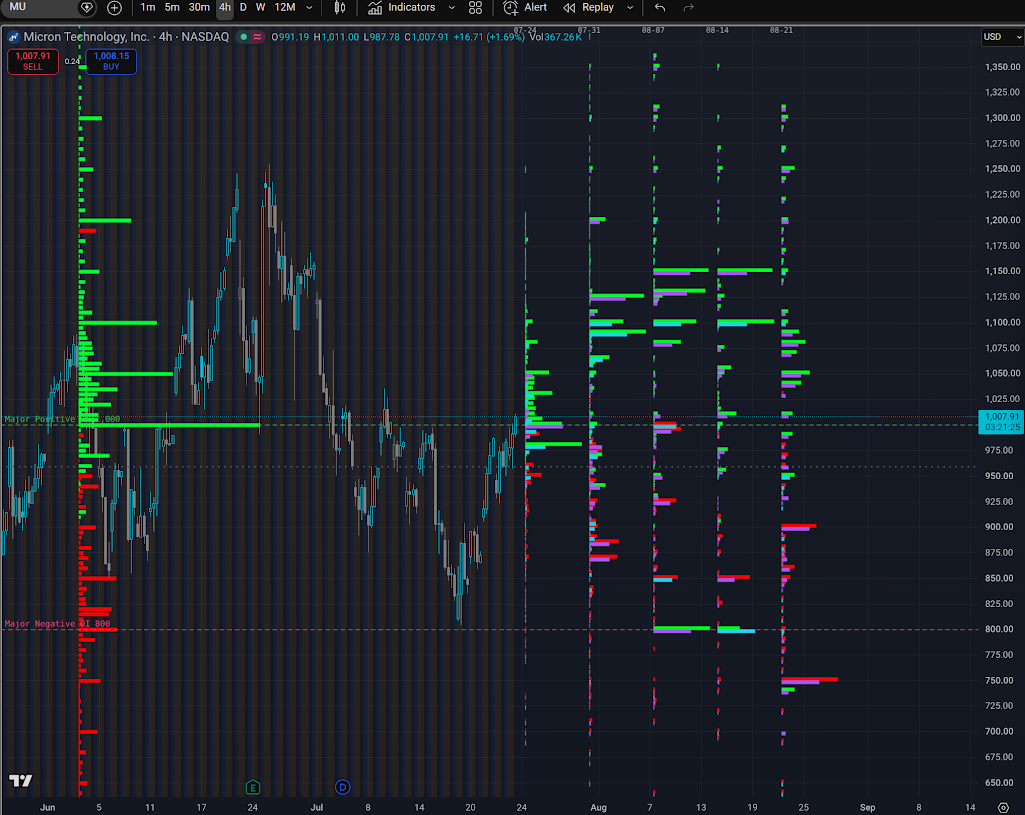
A companion bridge, not a native TradingView feature
TradingView does not natively support external options data feeds or custom indicator binaries. This integration works as a separate companion application that runs alongside TradingView Desktop and draws directly onto its charts. It is newer than gexbot's other platform integrations and still evolving, so expect more frequent updates than on longer-established platforms.
Source-available, noncommercial license
This integration is source-available, not open-source. It is licensed under the PolyForm Noncommercial License 1.0.0, copyright Not Financial Advice, LLC. You may use, copy, modify, and share it only for noncommercial purposes. Commercial use, including bundling it into a paid product or service, white-labeling it, or connecting it to a competing data feed, requires a separate written commercial license. See the full license notice in the nfa-llc/tradingview repository for details.
Requirements
- You need TradingView Desktop, for Linux, macOS, or Windows.
- You need Node.js 22 or newer installed.
- You need an active gexbot subscription with API access.
Download the integration
Clone or download the repository from the official nfa-llc/tradingview GitHub repository. Setup guides for Linux, macOS, and Windows are available in the repository.
Create a TradingView-specific API key
Generate a key from the Connections page. Use the TradingView key type specifically, since it is issued for this bridge and is separate from the keys used by the other gexbot platform integrations.
Configure the key file
In the package root, open api-key-example.txt, replace gexbot_tradingview_hashstringhere with your key, and save. Put only the key on the first line, with no quotes or extra text. Rename the file to api-key.txt. On Linux and macOS, also restrict its permissions:
chmod 600 api-key.txtStart the launcher
On Linux, run ./gexbot-launcher-linux.sh. On macOS, open the package folder in Finder and double-click gexbot-launcher-macos.command. On Windows, run gexbot-launcher-windows.bat.
Let it find TradingView Desktop
The launcher detects your installed TradingView Desktop automatically. On Linux, it supports common native, Snap, and Flatpak installs. On macOS, it supports the standard Applications folder and Setapp. On Windows, it supports the TradingView.Desktop Microsoft Store package.
Video walkthroughs
Platform notes
On macOS, if Gatekeeper blocks the launcher, see macOS won't let me run the launcher in the FAQ tab. On Linux, if the launcher asks about sandboxing, see Why did the Linux launcher ask about sandboxing?. Close TradingView Desktop when you are done; the companion application shuts down automatically with it.
Nothing showing up on your chart?
If the companion is running but no profile appears, see Nothing is showing up on my chart in the FAQ tab above before contacting support.
Each chart pane has its own independent settings. Selecting a TradingView pane also selects its matching settings pane, but selecting a settings pane does not change which TradingView pane is active. Draw on this chart is separate for the Standard and Quant tabs, so you can enable one and disable the other on the same pane. Profile drawings are automatically hidden beneath TradingView's own dialogs and popup menus, so they never draw over the top of them.
Standard
The Standard tab covers Classic GEX Volume, Classic OI, State GEX, and State Gamma profiles, each with independent visibility and expiry settings. Where available, expiries are 0DTE, 1DTE, and Full (90 day). Each profile has its own alignment, origin, width, thickness, vertical pixel offset, colors, and prior dots.
Majors for Classic, State GEX, and State Gamma are configurable independently, and do not require their related profile to be visible. Each Major has an optional GEX bar magnitude, its own visibility, color, label placement, line style, and thickness. Show GEX magnitude adds the nearest profile bar's magnitude to a Major's label. To calculate that value, the integration fetches data for the profile even when that profile itself is hidden, though it still does not draw the hidden profile on the chart.
Majors can also show intraday history, either as a one-minute moving-average line or as a raw scatter plot, with independent colors, draw styles, and line or dot thickness for the history layer.
Tickers are selectable, and preset futures pairs come with automatically populated conversion values. A manual additive and multiplicative futures conversion is also available.
The ticker section is open by default. The profile, Majors, and manual conversion sections are collapsed by default.
Refresh schedule
Standard performs one initial data pull as soon as it starts, regardless of the time. After that, recurring refreshes only run between 9:30 AM and 4:00 PM Eastern Time, Monday through Friday.
Quant
The Quant tab works around explicit option expiration dates rather than a single aggregation setting. It covers Classic GEX Volume and OI, State GEX, and the Delta, Gamma, Vanna, and Charm profiles. Each profile has independent alignment, placement, width, thickness, vertical pixel offset, and separate positive and negative colors. Prior dots, dot size, and prior colors are configurable wherever a profile supports them. Each profile can be placed either anchored to a specific date or as a percentage of the visible chart window.
Each expiration has its own reset control, and a separate control lets you copy one expiration's complete profile setup to every other configured expiration at once. A pane-level Quant profile template carries copied settings across ticker changes, so switching the ticker on a pane does not lose your configuration.
The ticker section is open by default. Settings for a given expiration appear once you select its date, and are collapsed by default. Each profile has its own collapsible section and its own Show toggle.
Requires a Quant-enabled key
Quant profiles only work with a Quant-enabled gexbot API key. A Standard-tier key will not populate this tab.
Explicit-expiration defaults
The first time you use Quant, the next five Friday expirations are enabled automatically with State Gamma selected, a 50px profile width, right alignment, and expiration-date anchoring. You can stage expiration and profile changes before applying them: selection changes only take effect once you click Apply changes, while visual placement settings take effect immediately as you adjust them.
A date-anchored profile whose date falls outside the currently visible chart range stays hidden until you scroll that date into view.
Apply Settings To All Expiration Profiles copies every profile setting from the currently selected expiration to every other expiration you have configured, without changing which expiration dates are enabled. It also saves that configuration as the pane's Quant template, so a new date you enable later, or an expiration profile loaded after switching tickers, inherits the same settings automatically.
Compatibility and logs
If a TradingView Desktop update causes a compatibility problem, the settings panel shows an error describing it.
Logs are stored per platform, at ${XDG_STATE_HOME:-$HOME/.local/state}/gexbot-tradingview-v1.0/ on Linux, at ~/Library/Logs/gexbot-tradingview-v1.0/ on macOS, and at %LOCALAPPDATA%\gexbot-tradingview-v1.0\logs\ on Windows.
Configuration file locations
Settings are stored per platform, at ${XDG_CONFIG_HOME:-$HOME/.config}/gexbot-tradingview-v1.0/config.json on Linux, at ~/Library/Application Support/gexbot-tradingview-v1.0/config.json on macOS, and at %LOCALAPPDATA%\gexbot-tradingview-v1.0\config.json on Windows.
| Environment variable | What it does |
|---|---|
IOF_API_KEY_PATH | Overrides the path to api-key.txt. |
IOF_CONFIG_PATH / IOF_CONFIG_DIR | Overrides the settings file or directory location. |
GEXBOT_ALLOW_NO_SANDBOX | Set to 1 to allow the Linux sandbox fallback automatically, or 0 to always decline it. |
Keep api-key.txt private
api-key.txt is excluded from version control by the project's own .gitignore. Do not include it in source control, screenshots, support bundles, or shared archives.